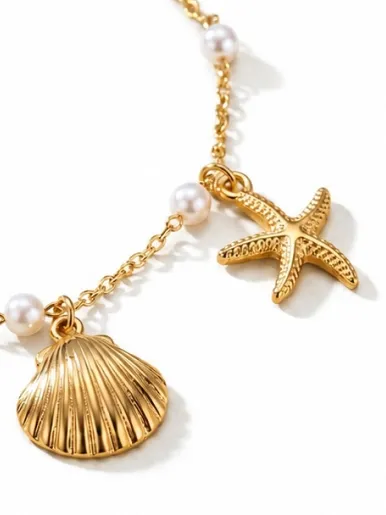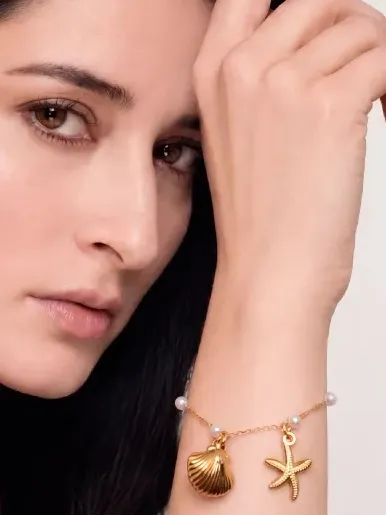
Short answer: FormaNova generates jewelry model shots and product shots from a photo of your piece, and exports the result you approve directly to your Shopify store as a draft product. You do not install anything first. The Shopify connection happens inside the export flow, at the moment you need it, and the product stays unpublished until you finish the listing yourself.
For jewelry brands, getting a new piece or collection ready for sale rarely ends when the jewelry itself is finished. It still needs to be photographed, edited, organized, matched to the correct product and added to the store. Each task is manageable on its own. The delay comes from moving between them.
For AI jewelry photography on Shopify to save meaningful time, the workflow cannot stop when a photo is generated. The approved image still has to become part of a product listing.
That gap is what this post is about, and what FormaNova’s Shopify export closes.
Jewelry photography is only the first bottleneck
Jewelry is difficult to photograph well. Fine details need to stay visible, and stones, polished metals and reflective surfaces each respond differently to light. Scale is what matters most in jewelry model photos, while sharpness and consistency are what matter in product photography.
Shopify’s guide to jewelry photography identifies reflections, smudges, lighting and small design details as the recurring challenges. A single piece often needs a clean product shot, a closer detail view and a model shot before a customer can understand both how it looks and how it wears.
For a closer look at why jewelry needs a specialized approach rather than a general-purpose image tool, read our guide to AI jewelry photography tools and our comparison of five AI photography tools tested on one complex ring.
Traditional photoshoots involve preparing the pieces, arranging the shoot, waiting for photography and then waiting again for edits. FormaNova compresses that by generating product shots and model shots from jewelry photos a brand already has, preserving prong geometry, pavé rows and metal finish from the uploaded reference.
But generating an image faster does not automatically get the product onto the store faster. The selected image still has to reach Shopify.
The work that begins after a photo is approved
Once a jewelry photo is ready, someone usually has to download it, name the file, put it in the correct folder, open Shopify, create the product and upload the image again. That does not sound like much until it repeats across a collection.
One Shopify merchant described spending four to five hours processing images for a release of 30 products, with much of that time spent moving files between tools and matching them to the correct products and variants. The manual work after editing took two hours on its own. Their Shopify Community post shows how quickly small tasks become real operational load.
Merchants with larger catalogs raise the same concern. In another Shopify Community discussion, a store owner described uploading and managing product images individually as extremely time-consuming.
This is not only a photography problem. It is a handoff problem: the creative work is finished, but the product still is not ready to sell.
We saw the same gap at FormaNova. Customers were creating model shots and product shots for their product pages, campaigns and online catalogs, and once they approved a result, they still had to download the image and repeat the work inside Shopify. So we connected the two workflows.
Curious how this looks on your own pieces? Create your own photoshoot →
From a FormaNova photoshoot to your Shopify store
The export begins inside FormaNova, where you already create your jewelry photoshoots. You do not need to visit the Shopify App Store or install the connector before creating your photos.
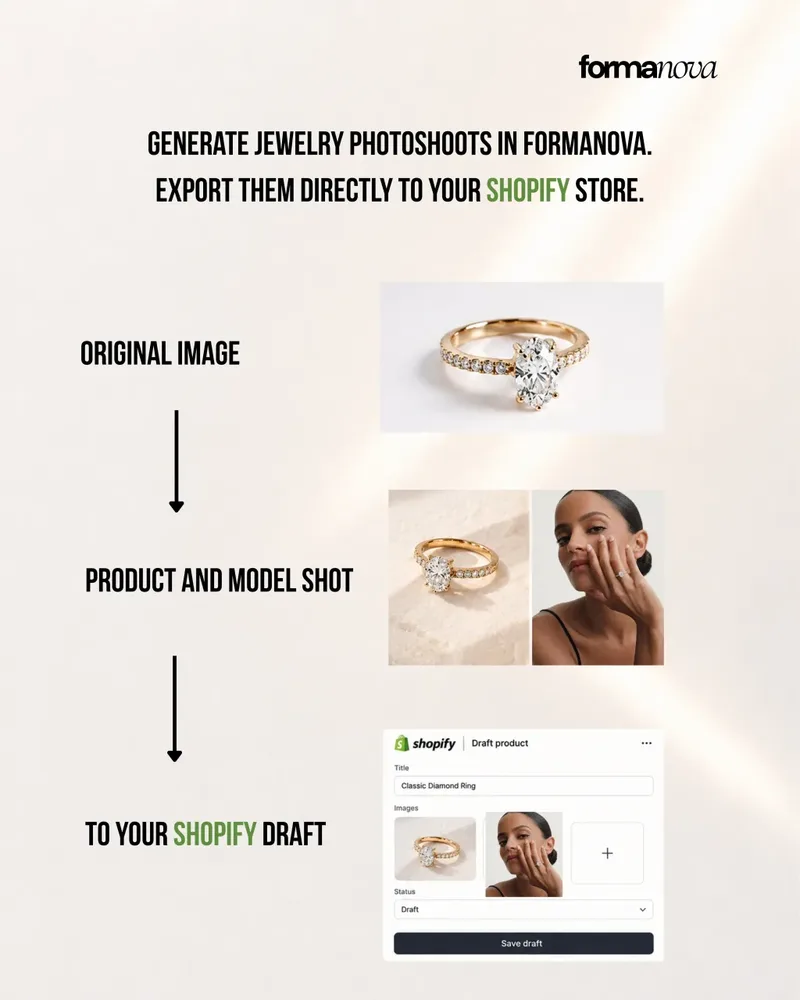
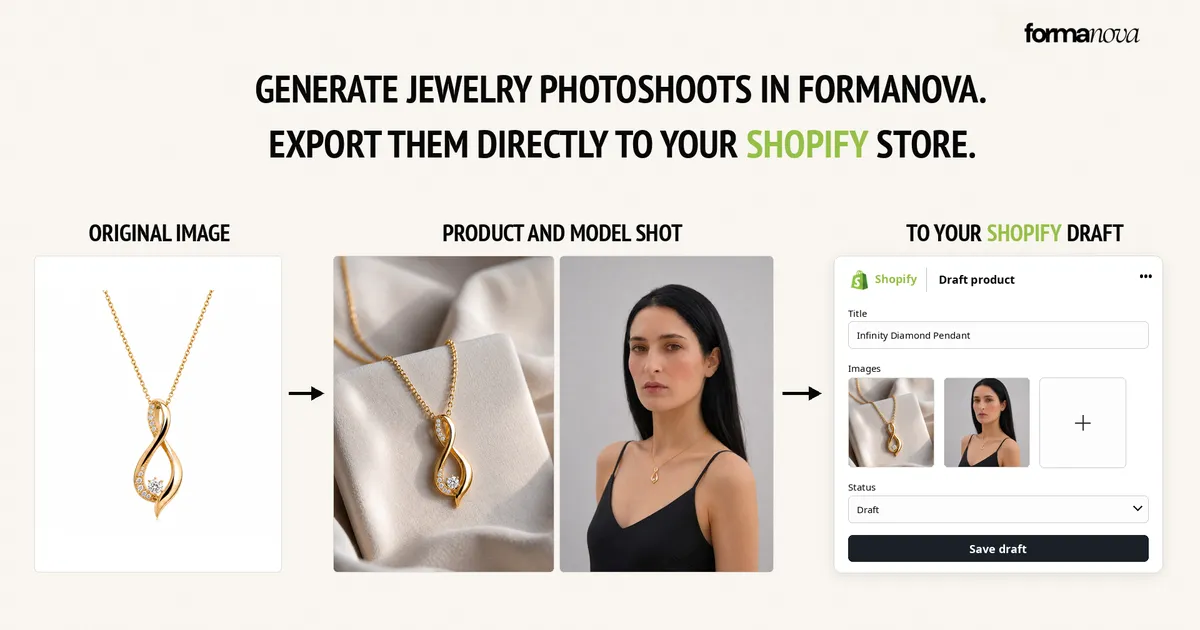
One uploaded jewelry photo becomes a product shot and a model shot, then lands on a Shopify draft product without a download in between.
Here is the full sequence:
- Upload your jewelry photo to FormaNova.
- Choose whether you want a model shot or a product shot.
- For a model shot, select a FormaNova model or upload your own model photo.
- Generate your photoshoot.
- Choose the result you want to use.
- Click Export to Shopify beneath the generated photo.
- Connect your Shopify store if FormaNova prompts you.
- Review the requested permissions in Shopify.
- Install FormaNova Connect | AI Jewelry on your store.
- Return to FormaNova and complete the export.
- Open the new draft product in Shopify and finish the listing.
If your store is already connected, you continue with the export immediately. If it is not, FormaNova displays a prompt asking you to connect. Selecting the connection option opens Shopify, where you can review the permissions the connector requests before installing it.
After installation completes, you are brought back to FormaNova, where your photoshoots live. You then complete the export, and the selected photo is added to a new draft product in your Shopify store.
The connection happens naturally during the export flow. There is no separate setup process to complete before you begin creating.
What FormaNova Connect does
FormaNova Connect | AI Jewelry links your FormaNova account to your Shopify store. You keep uploading jewelry, choosing models and creating photoshoots on FormaNova. The connector is what allows the result you select to travel from FormaNova to your store.
It does not replace the FormaNova jewelry photoshoot studio or add a separate photoshoot editor inside Shopify. Its purpose is narrow on purpose: you create your jewelry photos in FormaNova, select the result you want and export it.
Once your store has been connected, you can keep exporting selected photos to that store for as long as the connection stays active.
You stay in control of the connection
Connecting your Shopify store does not permanently lock it to FormaNova. You can manage the connection from your app settings and disconnect at any time. Once disconnected, FormaNova can no longer export new photos to that store unless you choose to reconnect it.
No separate download or upload step
Without a direct connection, the usual process means downloading the approved photo from one platform and uploading it to another. That creates several additional steps:
- Finding the correct downloaded file
- Renaming and organizing it
- Opening Shopify
- Creating the correct product
- Uploading the image again
- Checking that the correct version was attached
With FormaNova’s Shopify export, the selected photo moves directly from the place it was created to your store. Because the exported file is the same result you approved in the FormaNova gallery, the catchlight, metal finish and stone facets you signed off on are exactly what reaches the listing. You do not need to search a downloads folder or work out which generated version was final.
Why the product is created as a draft
FormaNova does not automatically publish the product to your live Shopify store, and that is intentional.
A jewelry listing carries information only the business can confirm: product title, description, price, materials, stone details, measurements, inventory and variants. A photo can support the listing, but it should not decide those details or push the product live without review.
The draft gives you a prepared starting point while keeping control inside Shopify. Shopify treats product creation and publication as separate actions. Shopify’s product documentation explains that a newly created product stays unpublished until it is deliberately published, which is exactly the behavior the export relies on.
The goal is not to remove the final review. It is to remove the repetitive work that happens before it.
What this changes for jewelry businesses
Less time between photo approval and listing
Once you approve a photo, work on the Shopify listing can begin immediately. You do not stop the workflow, download the image, organize the file and return to the product later. For brands that release new pieces or collections regularly, shortening this gap helps products reach the store while the campaign or customer interest is still current.
Less file management
Download folders fill quickly, image names drift out of sync, and final photos end up sitting beside earlier generations where no one is sure which version was approved. Direct export removes that ambiguity: the exact photo you choose in FormaNova is the photo attached to the draft product.
Fewer opportunities to attach the wrong photo
Jewelry catalogs are full of products with small visual differences. Similar rings may use different stones, earrings may come in several metal finishes, and a necklace may be offered in multiple lengths. Two products can look nearly identical as thumbnails in a downloads folder. Moving photos by hand is one more chance to confuse them; exporting straight from the selected result closes that gap.
A more practical workflow for collections
The benefit grows with volume. Saving a few minutes on one product is useful, but removing the same repetitive steps from 20, 50 or 100 products meaningfully simplifies a launch.
You do not have to prepare or export an entire collection at once. Export individual results as they are approved, and each one moves to your store when it is ready. Teams can build product listings gradually as the collection takes shape instead of waiting until every image has been downloaded and organized.
No setup before you start creating
You can begin creating photos in FormaNova without connecting Shopify first. When you reach a result you want to export, FormaNova checks whether your store is connected, and if it is not, the connection and installation steps appear at the exact moment they are needed. You never have to hunt for the connector or wonder whether it needs installing before you generate anything.
More control, not less
A faster workflow should not be a less careful one. Jewelry businesses still need to verify details, prices, availability and variants before a product goes live. Because the selected FormaNova photo lands on a draft product, your business keeps the final decision. Nothing reaches your live store until you complete the listing and publish it from Shopify, and you can disconnect the store from your app settings whenever you want.
Who benefits most from this workflow
The Shopify connection is most useful for independent jewelry brands where one person manages photography, product uploads, listings and marketing at the same time. It also helps jewelry wholesalers, independent designers, online jewelry retailers, growing Shopify stores, brands launching regular collections and teams running larger catalogs.
It earns its keep most during a collection launch. Instead of treating photography as one project and Shopify listings as another, teams move each selected photo to the store as soon as it is approved. The result is not just a faster export. It is a shorter path from having the jewelry ready to having the product ready to sell.
Frequently asked questions
Do I need to install the Shopify app before creating jewelry photos?
No. You can create a complete model shot or product shot in FormaNova first. When you click Export to Shopify, FormaNova checks whether your store is connected, and if it is not, guides you through the Shopify connection and app installation at that moment.
What happens when I click Export to Shopify?
If your store is already connected, you continue with the export. If it is not, FormaNova prompts you to connect your Shopify store. Shopify then opens so you can review the requested permissions and install the connector app. Once installation is complete, you return to FormaNova and finish the export.
Which Shopify app do I need to install?
FormaNova Connect | AI Jewelry, available on the Shopify App Store. The app connects your Shopify store to the jewelry photoshoots you create on FormaNova.
Can I review the app permissions before installation?
Yes. Shopify displays the full list of permissions requested by FormaNova Connect before you complete the installation, and no export can happen until you approve them.
Can I disconnect my Shopify store later?
Yes. You can disconnect your Shopify store at any time from your app settings. After disconnecting, new photos cannot be exported to that store unless you connect it again.
Can I export both jewelry model shots and product shots?
Yes. Any selected result from a FormaNova photoshoot can be exported, whether it is an on-model shot showing scale and wear or a clean product shot for the listing gallery.
Does FormaNova publish the Shopify product automatically?
No. FormaNova exports the selected photo to a draft product in your Shopify store. You review the photo, complete the product information and publish the product yourself when the listing is ready for customers.
What is included in the Shopify draft product?
The new draft product contains the selected FormaNova photo. You then complete the product title, description, price, materials, stone details, measurements, inventory and variants required for the listing.
Do I need to download the jewelry photo first?
No. The selected photo is exported directly from FormaNova to your connected Shopify store, so there is no downloads folder step and no question about which generated version was the approved one.
Do I need to connect my store every time I export?
No. After your Shopify store has been connected successfully, you can keep exporting selected photos to the same store for as long as the connection remains active.
Do I have to export an entire jewelry collection at once?
No. You can export one selected result whenever it is ready. There is no requirement to finish or export the whole collection in a single session.
Create the photoshoot, then keep moving
A jewelry photoshoot should not end in a downloads folder.
With FormaNova, you upload your jewelry, create a product shot or model shot, and select the result you want to use. Click Export to Shopify beneath the photo. If your store is already connected, you continue straight through. If it is not, FormaNova walks you through installing the connector and brings you back to finish.
The selected photo is added to a draft product in your Shopify store, where you complete the listing and publish it when the piece is ready to go live. There is no setup before you start creating, no manual download and re-upload, and no loss of control: you can disconnect your store from your app settings at any time.