This walkthrough was revised for FormaNova’s current Text-to-CAD output: native NURBS geometry exported as a .3dm file for Rhino and MatrixGold.
Designing a ring has traditionally required a trained CAD technician, a detailed brief, and at minimum a few days of back-and-forth. FormaNova’s Text-to-CAD feature compresses the blocking-out phase, the part where a designer is just trying to see if a shape works, to about ten minutes: type a description or upload a reference image, wait while the AI architects it, and receive a complete, component-separated 3D ring model ready for material assignment, editing in Rhino, or rendering.
This post walks through the full workflow, from prompt to a file you can take into manufacturing.
Step 1: Generate the Ring from a Prompt or Image
Start at formanova.ai/text-to-cad.
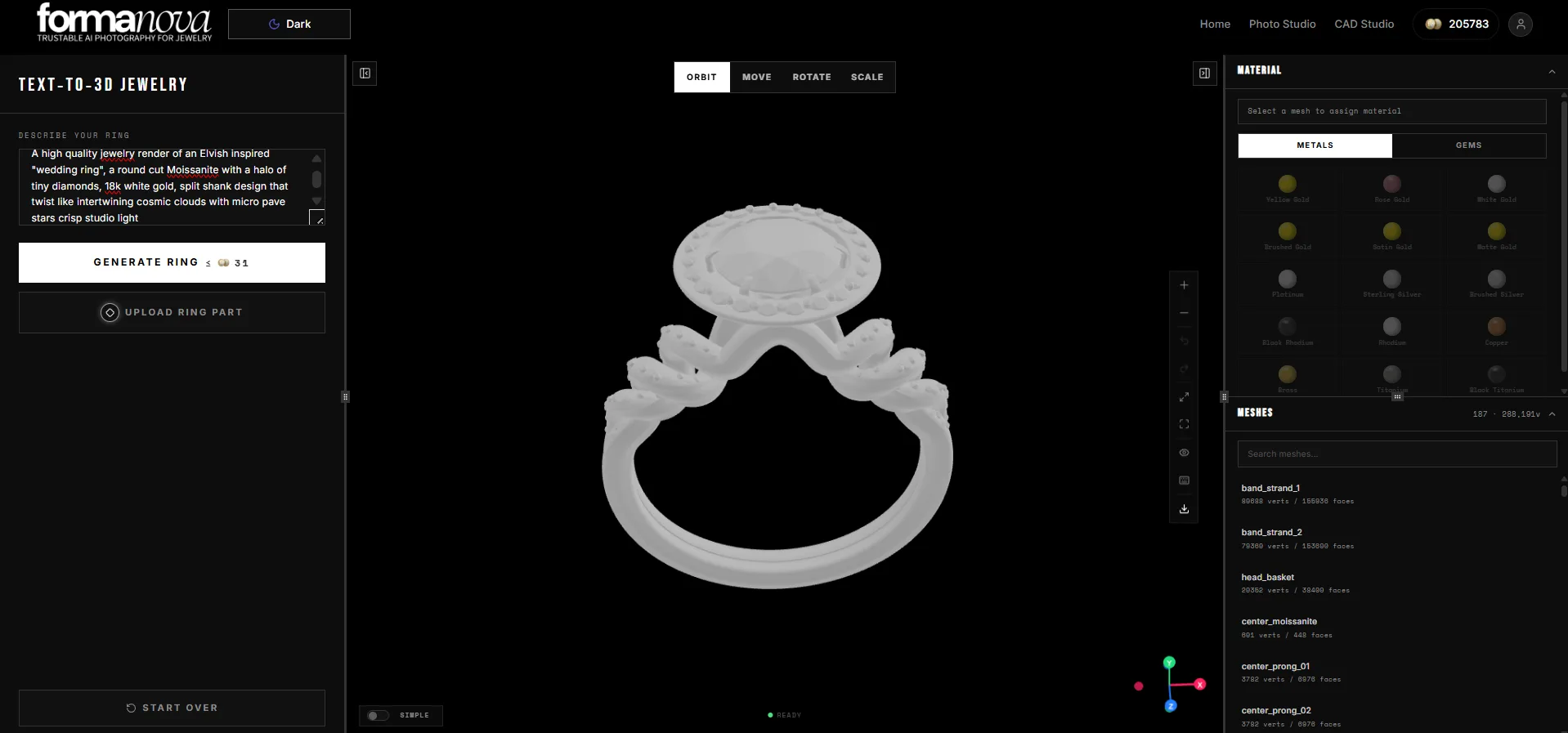
Type a plain-English description of the ring you want. The prompt can be as simple or as specific as your design calls for:
“Gold ring with an oval diamond and split shank band”
You can also start from an image instead of text. Upload an inspiration photo or a rough sketch and the AI uses it as the visual brief for the same component-separated NURBS output.
Then wait. This is not an instant generation: the model takes around ten minutes to build. That is the point.
A skilled Rhino designer typically spends two to four hours just blocking out a shape to evaluate whether it has the right proportions and feel. FormaNova produces that same starting point in a fraction of the time, and often with geometry that a human wouldn’t naturally draw: organic flows, unusual curvatures, structural choices that come from the AI’s spatial reasoning rather than a designer’s habitual CAD moves. If you are stuck in a creative rut or need to quickly explore multiple design directions before committing to one, that is where this tool earns its time.
FormaNova produces a component-separated NURBS ring from a text prompt in about ten minutes, a starting point an experienced Rhino designer would spend two to four hours blocking out by hand.
Go grab a coffee while it runs.
Step 2: Edit Components and Apply Materials
When the model arrives, it is not a single merged object and it is not blobby AI geometry. It is a kit of discrete parts: the band, the stone, the prongs, and any decorative elements each exist as independent NURBS bodies within a single assembly.
FormaNova’s Text-to-CAD generates ring models as an assembly of separate NURBS bodies, band, diamond, prongs, and decorative elements each independent, giving designers full object-level control without any destructive editing.
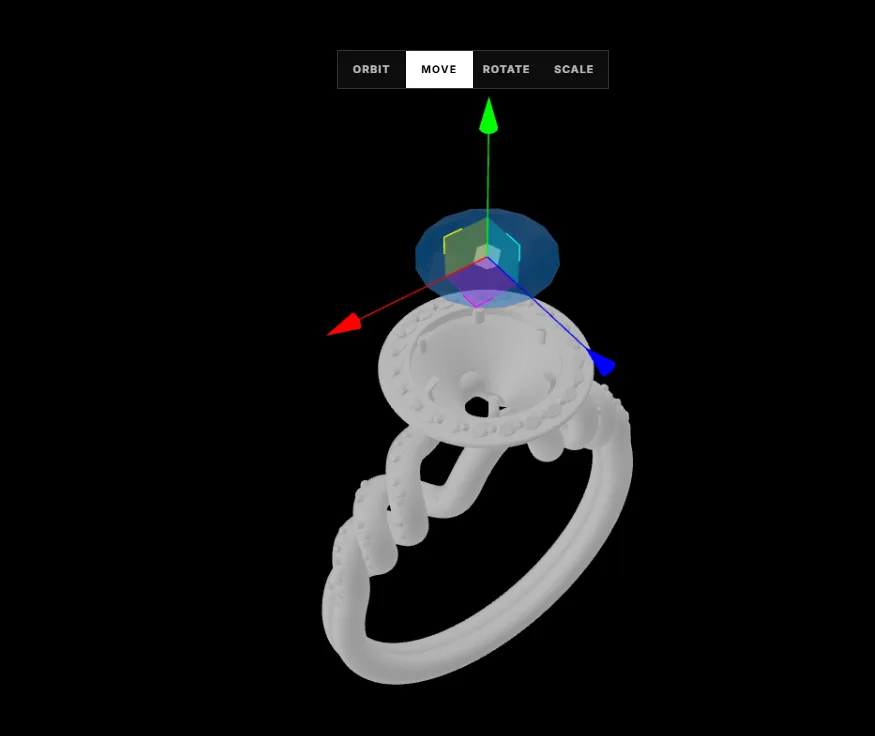
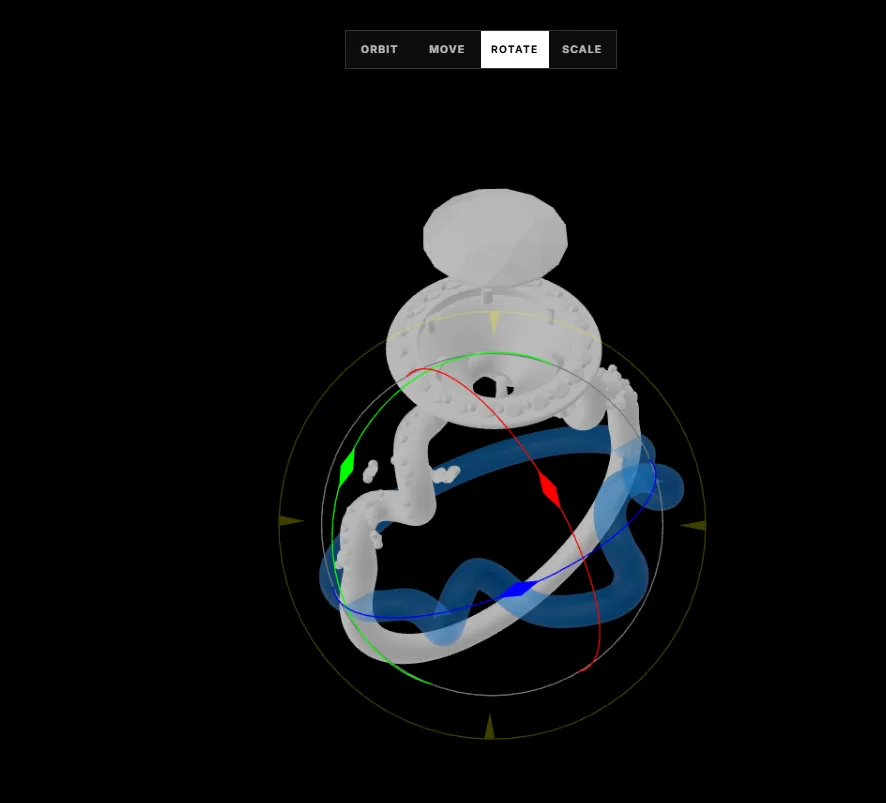
Inside FormaNova’s spatial editor, you can work with each component individually before you ever export:
- Move prongs without warping the band
- Reposition the stone
- Hide or delete individual components, for instance removing the AI-generated diamond placeholder entirely and substituting a precisely-cut diamond from your own library
- Transform individual elements to adjust proportions
You can also assign basic materials before exporting:
Metals: yellow gold, white gold, rose gold, silver, platinum
Stones: diamond, ruby, sapphire, emerald, opal
These material assignments carry into the export, so whatever tool you open the file in receives a fully specified ring rather than a grey placeholder.
Curious how this looks on your own pieces? Create your own photoshoot →
Step 3: Export
When the design is ready, export it. FormaNova gives you two formats, and which one you pick depends on where the design goes next:
- .3dm is the native Rhino format, and it is also what MatrixGold and other Rhino-based jewelry suites read. This is the file you want for any work that ends in manufacturing: sizing, weight estimation, pavé layout, cutter paths, casting prep.
- GLB bundles the geometry and material assignments into one portable file for rendering. Use it when the next step is a photorealistic image rather than a bench.
FormaNova’s Text-to-CAD exports a native .3dm file, so the model opens directly in Rhino and MatrixGold as editable NURBS geometry, not a mesh a designer has to retrace by hand.
Refine in Rhino or MatrixGold
Open the .3dm. Because the geometry is NURBS rather than a triangle mesh, you work with it the same way you would a model you built yourself:
- Adjust the shank to a specific finger size
- Set exact band thickness and profile for a target metal weight
- Rebuild or fillet individual surfaces
- Swap the placeholder stone for a precisely-cut model from your library and cut a proper seat
- Lay out pavé, set millgrain, add engraving
The component-separated structure helps here too: each part is already its own body, so you can work one element without disturbing the rest. What used to be “trace the AI concept into real CAD” is now “adjust a CAD model that is already real.”
Render a Photorealistic Image in iJewel3D
If what you need next is a product image rather than a manufacturing file, export the GLB and take it into ijewel3d.com, a browser-based rendering platform purpose-built for jewelry.
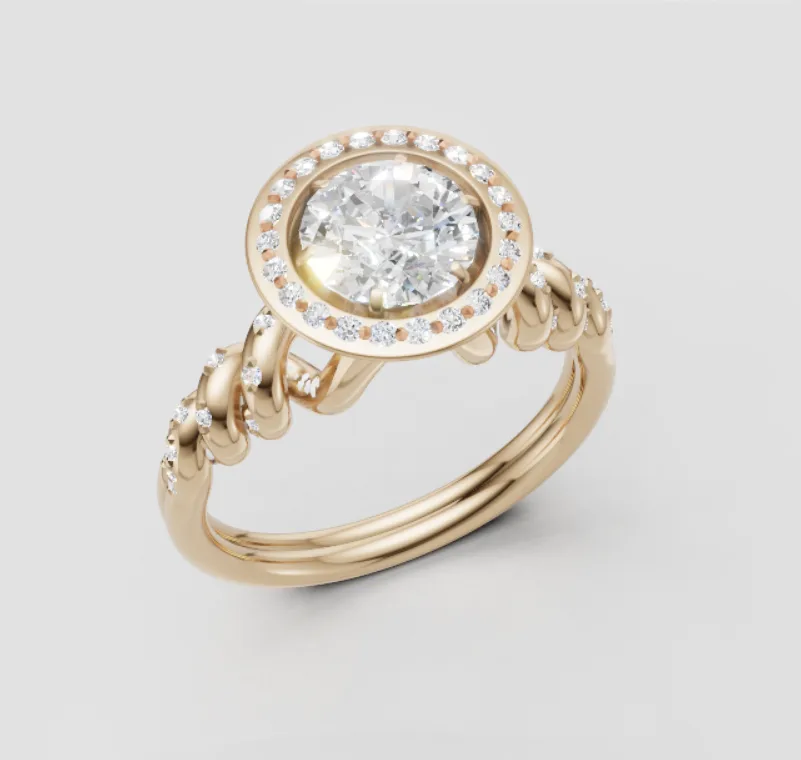
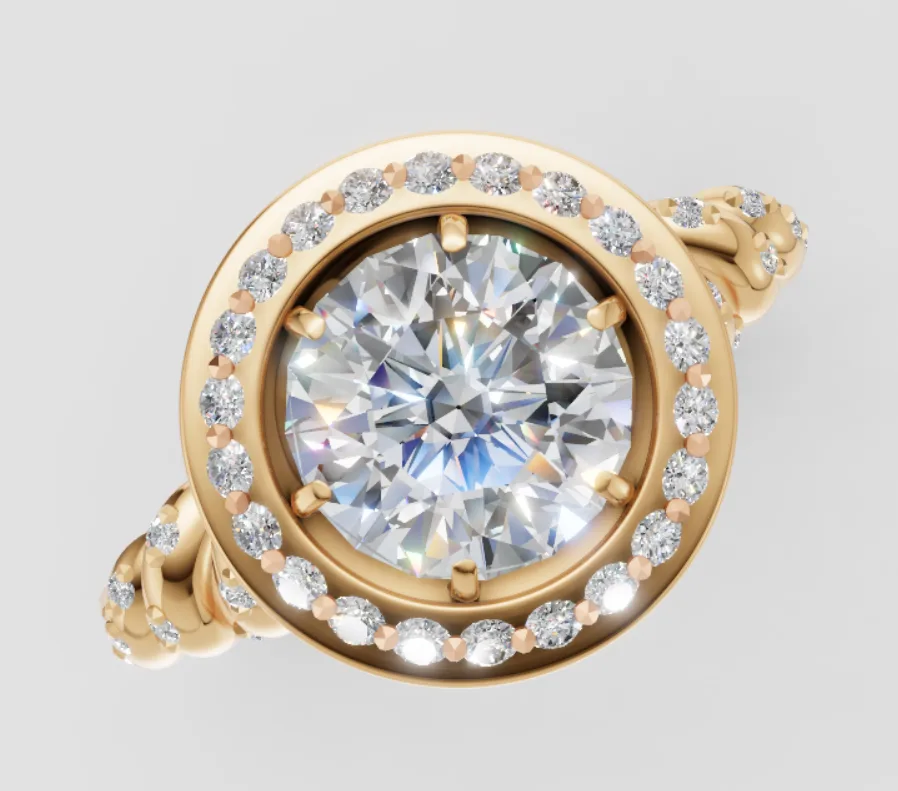
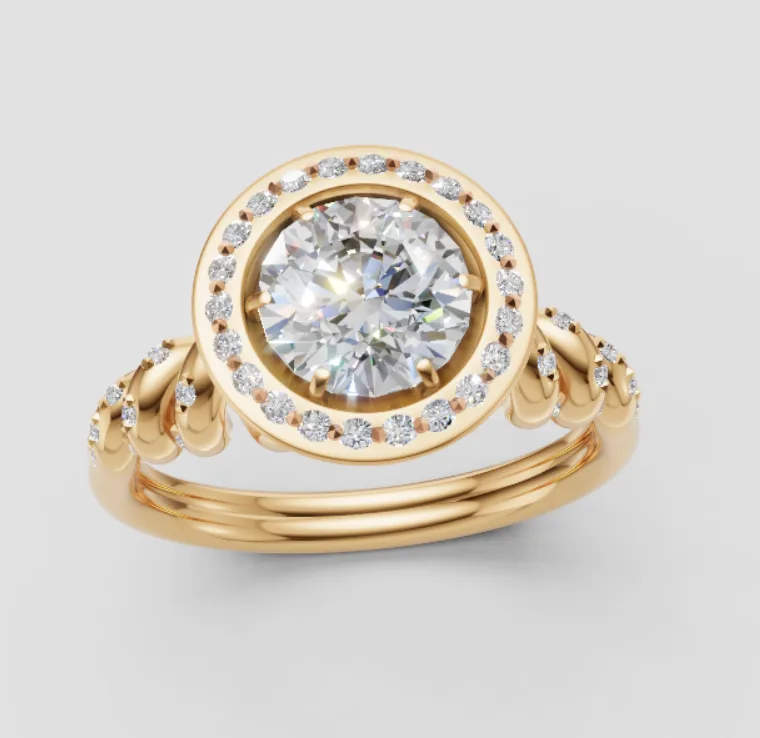
Your file already carries material assignments from FormaNova: metal type, stone type, and component structure. What iJewel3D adds is photorealism: physically accurate light behaviour, proper diamond refraction, metal reflectivity at render quality, and studio or HDRI environments.
A few settings determine whether the render reads as a product photograph or as CGI:
- Refraction index. The correct value for diamond, 2.417, produces characteristic fire and brilliance; a wrong value makes the stone look like glass.
- Surface finish. High polish, brushed, or matte each reflect the environment differently.
- Environment. Studio lighting for clean e-commerce shots; HDRI for lifestyle and editorial.
Configure a camera angle, product overhead, 45-degree, or a close-up of the stone, then render to high-resolution stills, interactive 3D embeds, or viewer links for client approvals.
What This Workflow Replaces
The traditional path from ring concept to approved design: brief to a CAD technician, file, revision round, rendering studio, revision, final image. Days to weeks, hundreds of dollars per design iteration.
FormaNova compresses the concept phase to a single session and hands back a file that is already CAD, not a reference a technician still has to rebuild. The precision work, sizing, stone seats, casting tolerances, still needs human expertise, but it now happens on a form that has already been evaluated and approved, in a NURBS model instead of a fresh Rhino document.
Summary
| Step | Tool | What happens |
|---|---|---|
| 1. Generate | FormaNova | Text prompt or reference image to an assembly of separate NURBS parts (~10 min) |
| 2. Edit + Materials | FormaNova | Move, hide, delete components; assign metal and stone |
| 3. Export | FormaNova | .3dm for Rhino and MatrixGold, or GLB for rendering |
| 4a. Refine | Rhino / MatrixGold | Size, thickness, stone seats, pavé, millgrain on editable NURBS |
| 4b. Render | iJewel3D | Photoreal stills, embeds, viewer links from the GLB |
Try it at formanova.ai/text-to-cad. No CAD skills required to get a direction worth refining.